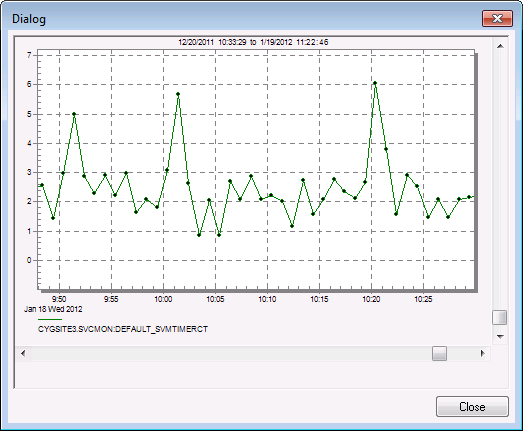
A trend of a point’s history data can be viewed at any time. This includes data that is currently in the VHS and is independent of thinning rules and Data Analyzer statistics. Trend options are set on the Trending menu.
| Trend Default | Description |
|---|---|
|
Time Range |
Specifies the time range to use when trending values. The All Data option ensures that each time a point is trended, the time range will be read from the VHS to make sure the most recent range is used. |
|
Mark Data Points |
If enabled, individual data points will be marked on the trend line. |
|
Extend Last Value |
If enabled, the last value will be extended to the end of the trend window. |
|
Overlay Y-Axis |
If enabled, and multiple points are trended, then they will appear on the same graph. |
To Trend a Point
See Trend Tool for information about trending and trend manipulation.
|
|
|

